
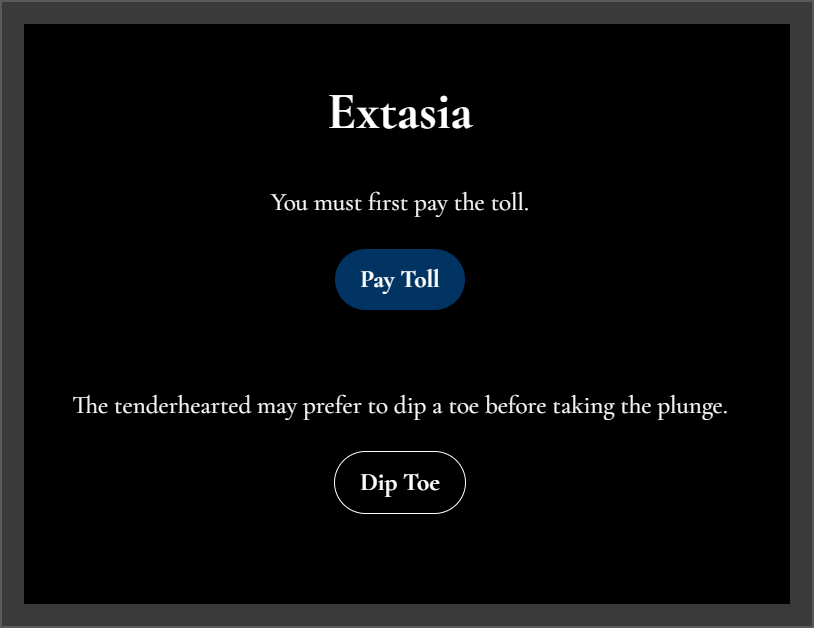
* I’m hitting the paygate at www.clixtasy.com/extasia instead of opening the clickstory, even though I’ve paid for it.
Make sure you’re logged in. Click “My account” and log in with the same username you used when you made your purchase. If you’re logged in, try refreshing the page. If that still doesn’t work, contact Clixtasy, referencing the email attached to your account and any other details you think are relevant.
* I can’t log in, even though I’ve made a purchase?
Your account is created automatically the moment you purchase, and we email you a link to set your password. If you haven’t clicked that yet, you technically have an account, but no password set — so login won’t work.
Check your spam or promotions folder for an email from us with a “set your password” link. Once you’ve set it, you’ll have full access to whatever you purchased — the browser/PWA version of Extasia, the APK download, or your ebook, straight away.
* How do I download the Extasia progressive web app (PWA) to my device?
Extasia installs directly from your browser as a PWA. Here’s how:
On Android (Chrome, Edge, or Brave):
- After purchasing, log in and open Extasia in your browser.
- Once the game loads, you’ll see an “Install” prompt, or you can tap the ⋮ menu in your browser and select “Install app” (or “Add to Home screen”).
- Confirm the install. The Extasia icon will appear on your home screen like any other app.
- Open it from your home screen from then on — no browser needed.
On iPhone/iPad (Safari):
- Log in and open Extasia in Safari.
- Tap the Share icon (the square with an arrow).
- Scroll down and select “Add to Home Screen.”
- Tap Add. The icon will appear on your home screen.
Important — before you go offline:
The very first time you open the installed app, make sure you’re connected to the internet and let the game fully load at least once. This lets the app save what it needs to run without a connection. After that first load, you can read offline anytime.
A note on some devices:
On certain devices (e.g. Fire tablets or Xiaomi/MIUI phones), the app may not go fully fullscreen and a couple of theme colours may look slightly off — this is a limitation of those browsers, not a bug in the app, and doesn’t affect gameplay.
* I don’t see an “Install” option for the PWA — what’s wrong?
A few common causes:
- You’re using an unsupported browser. PWA install works reliably in Chrome, Edge, and Brave on Android, and Safari on iOS. Firefox for Android and in-app browsers (like the ones inside Instagram, TikTok, or Facebook) don’t support installing PWAs.
- You haven’t logged in yet. The install option only appears on the game page itself, which requires a purchased account. Make sure you’re logged in and the game has actually loaded before looking for the install prompt.
- You already installed it. If Extasia is already on your home screen, your browser won’t offer to install it again — just look for the icon.
- On Android, the prompt was dismissed. If you accidentally closed the install banner, you can still install manually via the browser’s ⋮ menu → “Install app” or “Add to Home screen.”
If none of these fit and you’re still stuck, let us know your device and browser and we’ll help you sort it out directly.
* How do I download and install the Android app (APK)?
The APK is a direct install file for Android — an alternative to the browser-based app, for anyone who prefers a standalone install.
- Purchase and log in at clixtasy.com if you haven’t already.
- On your purchase confirmation or account downloads page, tap the Extasia APK download link. The file will save to your device (usually to your Downloads folder).
- Android will likely warn you that installing apps from outside the Play Store is blocked. If prompted, tap Settings, then enable “Allow from this source” for your browser or file manager. This is a standard Android security step for any app not from the Play Store — it doesn’t mean anything is wrong.
(If you’d like extra peace of mind, here’s a VirusTotal scan of the current build — or, after downloading, you can also upload the file yourself to VirusTotal and scan it again before installation.) - Return to the downloaded file and tap it again. Tap Install.
- Once installed, open Extasia from your app drawer like any other app.
A note on updates: since the APK isn’t distributed through the Play Store, it won’t auto-update. If a new version is released, you’ll need to download and install it again the same way. The app may be available on the Play Store in the future, but such content
Which should I use — the APK or the browser app (PWA)? Either works well; it’s purely a matter of preference. The APK feels like a “real” installed app from the start, while the PWA is installed through your browser and needs one online load before it’ll work offline. Both give you the same clickstory.
Q: Why isn’t Extasia available on Google Play or the App Store?
Both Google and Apple prohibit apps containing sexually explicit content under their respective store guidelines — this applies regardless of age ratings or content warnings, so there’s no tier or gate that allows this kind of material through official app store review. Rather than compromise the experience to fit those restrictions, Extasia is distributed directly from this website: as a downloadable Android APK for Android users, and as a Progressive Web App (PWA) useable on any device. The PWA installs straight from your browser — no app store required — and works just like a native app once installed: full-screen, offline-capable, and living on your home screen with its own icon.
A note for iOS users: there’s currently no dedicated iOS app, though one may be considered down the line. In the meantime, Apple users can access the full experience through the PWA or standard browser version — just visit the site in Safari and use “Add to Home Screen” to install it.
* How does the save game feature and save slots work?
Extasia incorporates an automatic bookmark. Just exit whenever you like, and next time you open it, you’ll be back exactly where you left off. No need to save first.
In the menu you’ll also find the Saves button. This opens the Saves panel where you can save your current moment into a slot — each one is named after the passage you saved at and timestamped.
Saves are stored locally on your device, so they’ll be there next time you open Extasia — but they’re cleared if you clear the app’s data or reinstall. To protect against that, or to move your progress to another device, use Export to download a save file, and Import to bring it back in. There’s also Save/Load “On Disk,” which writes a save file straight to storage instead of keeping it in-app.